Linux中的各类时间 与 find命令的常用参数
之前研究wal日志清理的副产物,wal日志名被修改后文件的哪个时间会变?应该如何删除?由此整理一下Linux中atime、mtime、ctime的区别,以及find的常见用法。
之前研究wal日志清理的副产物,wal日志名被修改后文件的哪个时间会变?应该如何删除?由此整理一下Linux中atime、mtime、ctime的区别,以及find的常见用法。
一、 Linux中的各类时间
1. 各类时间的定义
Linux中有三种用于文件时间戳的概念:
-
atime(访问时间):表示文件最后一次被读取的时间。每次对文件的读取都会更新atime。这意味着即使只是查看文件的内容,atime也会被更新。在许多情况下,特别是对于大量读取操作的文件系统,会关闭或限制atime更新以提高性能。
-
mtime(修改时间):表示文件内容最后一次被修改的时间。当文件的内容发生变化时,mtime会被更新。这包括文件的写入、追加、截断等操作。
-
ctime(更改时间):表示文件元数据(比如权限、所有者、链接数等)最后一次被修改的时间。当文件的元数据发生变化时,ctime会被更新。这包括文件的文件名、权限、链接数、所有者变更等操作。
2. 如何查看这些时间
① stat命令
-bash-4.2$ stat tmp.html
  File: ‘tmp.html’
  Size: 31284     	Blocks: 64         IO Block: 4096   regular file
Device: f900h/63744d	Inode: 67752138    Links: 1
Access: (0644/-rw-r--r--)  Uid: (  501/postgres)   Gid: (  502/     dba)
Access: 2023-04-05 14:25:13.759000000 +0800
Modify: 2023-04-05 14:24:52.767000000 +0800
Change: 2023-04-05 14:24:52.767000000 +0800
通常来说,mtime变化ctime都会跟着变,因为修改文件内容后,其大小等元数据都会变化。如果直接echo修改文件,atime不会变;如果通过vi等方式直接访问文件修改,则atime会变。
-bash-4.2$ echo "111" >> tmp.html
-bash-4.2$
-bash-4.2$ stat tmp.html
  File: ‘tmp.html’
  Size: 31288     	Blocks: 64         IO Block: 4096   regular file
Device: f900h/63744d	Inode: 67752138    Links: 1
Access: (0644/-rw-r--r--)  Uid: (  501/postgres)   Gid: (  502/     dba)
Access: 2023-04-05 14:25:13.759000000 +0800
Modify: 2024-02-22 15:39:44.592000000 +0800
Change: 2024-02-22 15:39:44.592000000 +0800
-bash-4.2$ vi tmp.html
-bash-4.2$
-bash-4.2$ stat tmp.html
File: ‘tmp.html’
Size: 31284 Blocks: 64 IO Block: 4096 regular file
Device: f900h/63744d Inode: 69354682 Links: 1
Access: (0644/-rw-r--r--) Uid: ( 501/postgres) Gid: ( 502/ dba)
Access: 2024-02-22 15:40:22.778000000 +0800
Modify: 2024-02-22 15:40:22.778000000 +0800
Change: 2024-02-22 15:40:22.780000000 +0800
Birth: -修改元数据,例如文件名,ctime会变mtime不变。
-bash-4.2$ mv tmp.html tmp_02.html
-bash-4.2$
-bash-4.2$ stat tmp_02.html
  File: ‘tmp_02.html’
  Size: 31284     	Blocks: 64         IO Block: 4096   regular file
Device: f900h/63744d	Inode: 69354682    Links: 1
Access: (0644/-rw-r--r--)  Uid: (  501/postgres)   Gid: (  502/     dba)
Access: 2024-02-22 15:40:22.778000000 +0800
Modify: 2024-02-22 15:40:22.778000000 +0800
Change: 2024-02-22 15:49:19.370000000 +0800
 Birth: -
访问一下文件,只有atime会变
-bash-4.2$ less tmp_02.html
-bash-4.2$
-bash-4.2$ stat tmp_02.html
  File: ‘tmp_02.html’
  Size: 31284     	Blocks: 64         IO Block: 4096   regular file
Device: f900h/63744d	Inode: 69354682    Links: 1
Access: (0644/-rw-r--r--)  Uid: (  501/postgres)   Gid: (  502/     dba)
Access: 2024-02-22 15:52:46.589000000 +0800
Modify: 2024-02-22 15:40:22.778000000 +0800
Change: 2024-02-22 15:49:19.370000000 +0800
 Birth: -
② ls命令
ls命令利用不同的参数可以看到不同的时间
- mtime:ls -l filename
- atime:ls -lu filename
- ctime:ls -lc filename
-bash-4.2$ ls -l tmp_02.html
-rw-r--r-- 1 postgres dba 31284 Feb 22 15:40 tmp_02.html
-bash-4.2$
-bash-4.2$ ls -lu tmp_02.html
-rw-r--r-- 1 postgres dba 31284 Feb 22 15:52 tmp_02.html
-bash-4.2$
-bash-4.2$ ls -lc tmp_02.html
-rw-r--r-- 1 postgres dba 31284 Feb 22 15:49 tmp_02.html
这里默认只到分钟,更详细的可以用time-style参数调整显示格式
-bash-4.2$ ls -l tmp_02.html --time-style=+"%Y-%m-%d %H:%M:%S"
-rw-r--r-- 1 postgres dba 31284 2024-02-22 15:40:22 tmp_02.html
-bash-4.2$
-bash-4.2$ ls -lu tmp_02.html --time-style=+"%Y-%m-%d %H:%M:%S"
-rw-r--r-- 1 postgres dba 31284 2024-02-22 15:52:46 tmp_02.html
-bash-4.2$
-bash-4.2$ ls -lc tmp_02.html --time-style=+"%Y-%m-%d %H:%M:%S"
-rw-r--r-- 1 postgres dba 31284 2024-02-22 15:49:19 tmp_02.html
3. wal日志应该用哪个时间判断删除
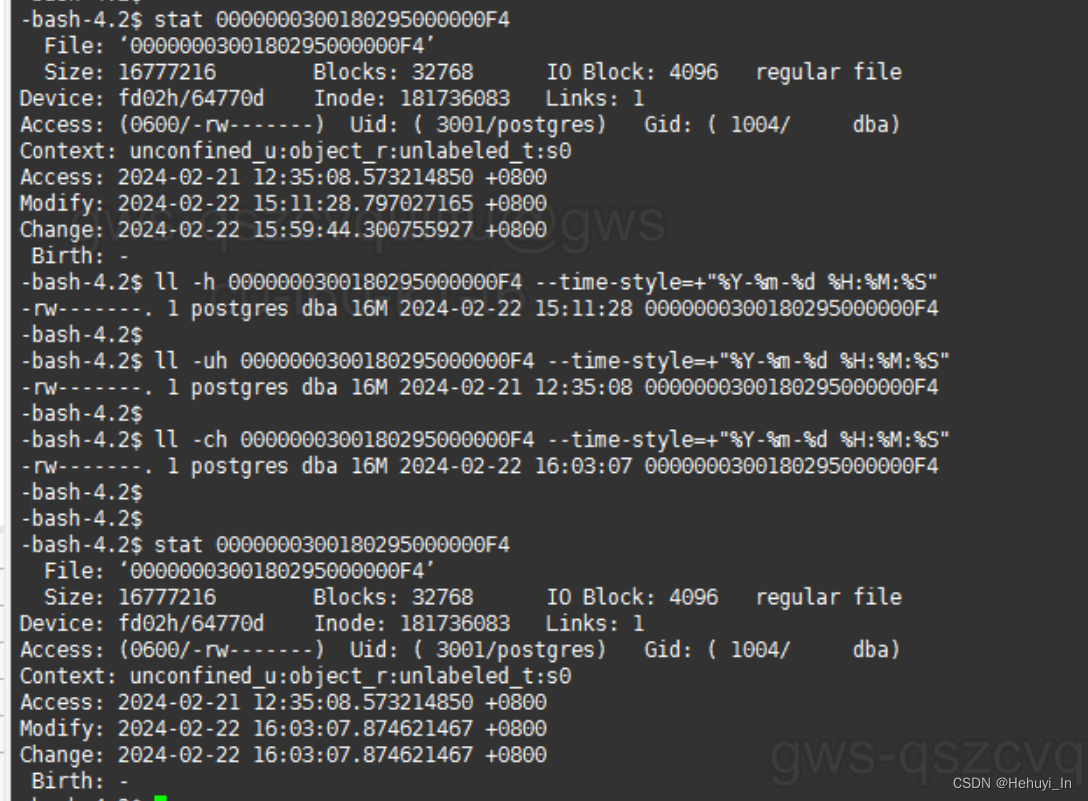
以实际的wal日志为例,可以看到被重命名后仅ctime会改变。一段时间后其文件内容也被修改,mtime和ctime同时变化。因此,为了避免误删除,用ctime来作为条件相对而言是最安全的,也可以mtime和ctime两个条件都加上。
二、 find命令的常用参数
1. 按时间查找
就是前面提到过的3个时间
- -atime n:查找在 n*24小时(前/内/时)被访问过的文件
- -ctime n:查找在 n*24小时(前/内/时)元数据被修改的文件
- -mtime n:查找在 n*24小时(前/内/时)内容被修改过的文件
还可以按分钟
- -amin n:查找在 n分钟(前/内/时)被访问过的文件
- -cmin n:查找在 n分钟(前/内/时)元数据被修改的文件
- -mmin n:查找在 n分钟(前/内/时)内容被修改过的文件
这个 n 前面可以带 + - 或者不带符号,例如:
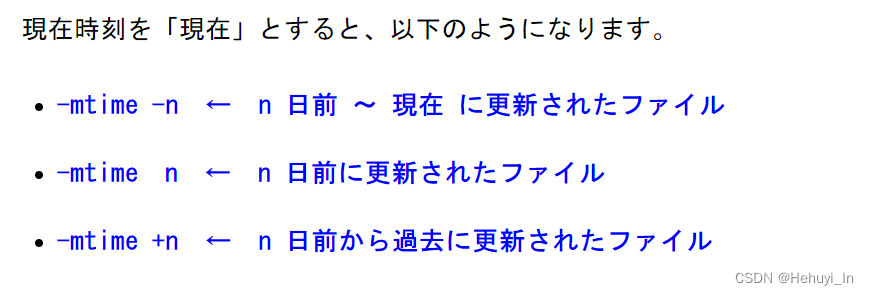
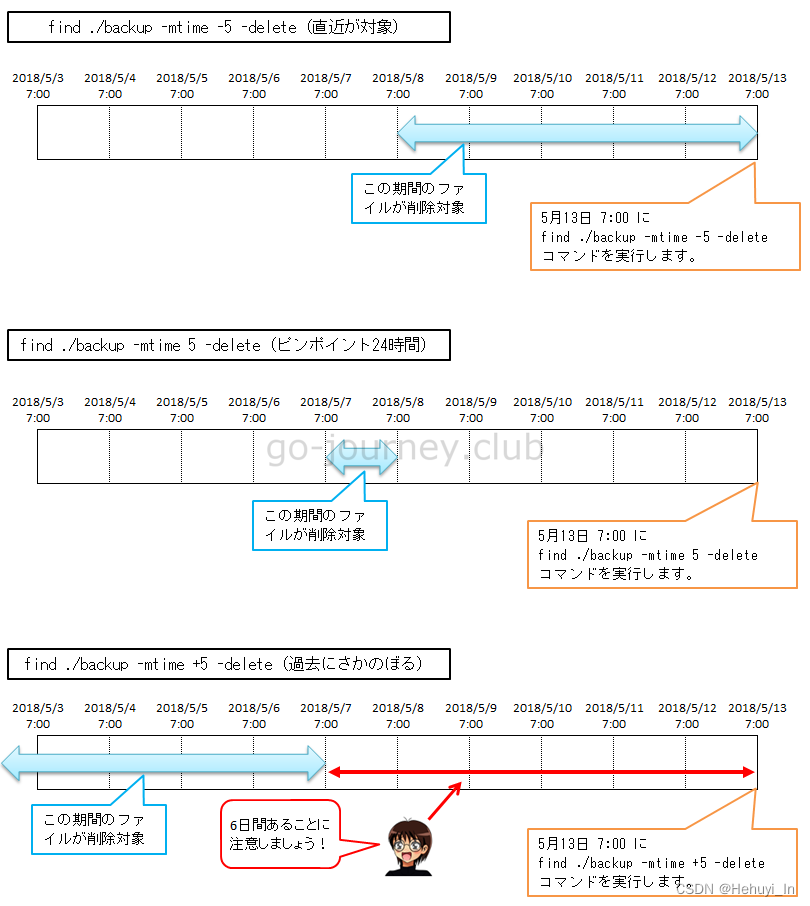
- -mtime -5:[5*24小时前时间点,当前时间点)
- -mtime 5:[6*24小时前时间点,5*24小时前时间点]
- -mtime +5: (−∞,5*24小时前时间点),特别注意这里是开区间
之所以特地强调24小时,因为它不是从0:00算起,而是按执行命令那刻的时间计算。
测试验证
[root@linux01 ~]# touch -t 02231400 2024-0223-1400
[root@linux01 ~]# touch -t 02221400 2024-0222-1400
[root@linux01 ~]# touch -t 02211400 2024-0221-1400
[root@linux01 ~]# touch -t 02201400 2024-0220-1400
[root@linux01 ~]# touch -t 02191400 2024-0219-1400
[root@linux01 ~]# touch -t 02181400 2024-0218-1400
[root@linux01 ~]# touch -t 02171400 2024-0217-1400
[root@linux01 ~]# touch -t 02161400 2024-0216-1400

[root@linux01 ~]# ll -h 2024*
-rw-r--r-- 1 root root 0 Feb 16 14:00 2024-0216-1400
-rw-r--r-- 1 root root 0 Feb 17 14:00 2024-0217-1400
-rw-r--r-- 1 root root 0 Feb 18 14:00 2024-0218-1400
-rw-r--r-- 1 root root 0 Feb 19 14:00 2024-0219-1400
-rw-r--r-- 1 root root 0 Feb 20 14:00 2024-0220-1400
-rw-r--r-- 1 root root 0 Feb 21 14:00 2024-0221-1400
-rw-r--r-- 1 root root 0 Feb 22 14:00 2024-0222-1400
-rw-r--r-- 1 root root 0 Feb 23 14:00 2024-0223-1400
[root@linux01 ~]# date
Fri Feb 23 14:32:10 CST 2024
[root@linux01 ~]# find . -mtime -5 -name "2024*"
./2024-0223-1400
./2024-0222-1400
./2024-0221-1400
./2024-0220-1400
./2024-0219-1400
[root@linux01 ~]#
[root@linux01 ~]# find . -mtime 5 -name "2024*"
./2024-0218-1400
[root@linux01 ~]#
[root@linux01 ~]# find . -mtime +5 -name "2024*"
./2024-0217-1400
./2024-0216-14002. 目录深度
默认情况下,find会查找指定目录下的所有子目录,但有时我们只需要它在当前目录下查找,就可以利用maxdepth进行限制,提高效率的同时避免误删子目录的文件。相应的还有一个mindepth参数,有需要可以配合使用。
① 默认情况
可以看到它还查了archive_status目录下的文件
-bash-4.2$ ls
00000004.history                          000000050000000900000000  000000050000000900000002  archive_status
000000050000000100000058.00000028.backup  000000050000000900000001  00000005.history

-bash-4.2$ find .
.
./archive_status
./archive_status/00000004.history.done
./archive_status/00000005.history.done
./archive_status/000000050000000900000000.done
./archive_status/000000050000000900000001.done
./archive_status/000000050000000100000058.00000028.backup.done
./00000004.history
./000000050000000100000058.00000028.backup
./00000005.history
./000000050000000900000000
./000000050000000900000001
./000000050000000900000002
② 仅查当前目录 -- maxdepth=1
这次结果就不包含archive_status目录下的文件
-bash-4.2$ find . -maxdepth 1
.
./archive_status
./00000004.history
./000000050000000100000058.00000028.backup
./00000005.history
./000000050000000900000000
./000000050000000900000001
./000000050000000900000002
③ maxdepth=0的效果
maxdepth=0是一个特别的设置(一般不用),它表示仅在命令行给定的文件列表中去查询,如果不给,返回结果均为空。
-bash-4.2$ find . -maxdepth 0
.
命令行中给定文件列表,它只会在给定的000和001两个文件中去查询
-bash-4.2$ find . 000000050000000900000000 000000050000000900000001 -maxdepth 0
.
000000050000000900000000
000000050000000900000001
-bash-4.2$
-bash-4.2$ find . 000000050000000900000000 000000050000000900000001 -maxdepth 0 -name "000000050000000900000000"
000000050000000900000000
3. 执行命令
① find与管道的冲突
查找文件通常是为了对它们进行操作,一般这步会用管道来实现,但在find中是不行的。
例如下面本来只想列出查找后的文件信息,实际上ll -h列出了当前目录所有文件。
[root@linux01 ~]# find . -mtime +5 -name "2024*" | ll -h
total 15M
-rw-r--r--  1 root     root     0 Feb 16 14:00 2024-0216-1400
-rw-r--r--  1 root     root     0 Feb 17 14:00 2024-0217-1400
-rw-r--r--  1 root     root     0 Feb 18 14:00 2024-0218-1400
-rw-r--r--  1 root     root     0 Feb 19 14:00 2024-0219-1400
-rw-r--r--  1 root     root     0 Feb 20 14:00 2024-0220-1400
-rw-r--r--  1 root     root     0 Feb 21 14:00 2024-0221-1400
-rw-r--r--  1 root     root     0 Feb 22 14:00 2024-0222-1400
-rw-r--r--  1 root     root     0 Feb 23 14:00 2024-0223-1400
-rw-------. 1 root     root  1.5K Jul 11  2022 anaconda-ks.cfg
-rw-r--r--  1 root     root   493 Oct 12 02:29 date.txt
-rwxr-xr-x  1 root     root   123 Nov 26  2022 function.c
因为find输出的不是简单的文本流,而是带有文件路径和其他信息的结构化数据。管道接收的是基于文本的输入,只能处理纯文本数据。因此,如果要对find命令的输出进行进一步处理,需要使用-exec或者-xargs来实现。
② -exec参数的用法
上面命令正确写法应该是
[root@linux01 ~]# find . -mtime +5 -name "2024*" -exec ls -lh {} \;
-rw-r--r-- 1 root root 0 Feb 17 14:00 ./2024-0217-1400
-rw-r--r-- 1 root root 0 Feb 16 14:00 ./2024-0216-1400
其中:
- -exec参数运行用户运行命令
- {} 代表find的输出结果
- \; 表示命令结束
因此如果是删除找到的文件,写法应该是:
[root@linux01 ~]# find . -mtime +5 -name "2024*" -exec rm -rf {} \;③ xargs命令的用法
应该写成
[root@linux01 ~]# find . -mtime +5 -name "2024*" -print0 | xargs -0 ls -l;
-rw-r--r-- 1 root root 0 Feb 16 14:00 ./2024-0216-1400
-rw-r--r-- 1 root root 0 Feb 17 14:00 ./2024-0217-1400
其中:
- -print0的作用是将find命令的输出以空字符(null character,\0)作为分隔符,而不是默认的换行符。这种输出格式通常与xargs命令结合使用,可以有效处理文件名中包含空格或特殊字符的情况,确保对这些文件名进行正确的处理。
- xargs命令的作用是从标准输入中读取数据,然后将其作为参数传递给其他命令。
- xargs -0表示xargs命令使用\0作为输入定界符。目的是为了正确处理包含空格或特殊字符的文件名,通常与find命令的-print0参数配合使用。
相对来说这个写法更复杂一些,所以一般我们会用 -exec参数
④ 两者区别
- xargs是linux的命令,而-exec是find的参数
- xargs是分批处理,-exec是将find的结果集一次性投入到缓冲区执行。如果find找到的结果集很大,那么-exec的缓冲区则可能一次性被填满。但是xargs则不然,管道将结果集分批放入缓冲区执行。
find命令本身还支持非常多的查询条件和用法,这里不再一一列出,可以参考:Linux find 命令 | 菜鸟教程
参考:
【Linux】find コマンド【図解】 | 100%レンタルサーバーを使いこなすサイト
find -maxdepth 0 not returning me any output - Unix & Linux Stack Exchange

2万人民币佣金等你来拿,中德社区发起者X.Lab,联合德国优秀企业对接开发项目,领取项目得佣金!!!
更多推荐



 28
28 0
0- 0


 已为社区贡献1条内容

所有评论(0)